Narrat Themes
Narrat games can use themes to customise the entire look and layout of the game, and can swap themes on the go during gameplay
What is a Narrat theme?
Narrat themes are packages that can be used with the NarratThemesPlugin to instantly change the look of the game. A theme is made of the following elements:
- A
cssstylesheet (see ui customisation guide to learn how to customise the narrat UI with CSS) - A theme file, which defines the theme's name, which
cssfile to use, and can optionally provide a list of narrat config options to override
What can themes do?
Themes can do the following:
- Load new CSS stylesheets to change the layout, look, colors etc of everything
- Override values in the narrat config on the go. This allows changing pretty much anything in any of your config files by loading a theme which overrides the values you want to change. A theme could change the configuration of the dialog panel or viewport, for example.
- Themes can be swapped at any time during gameplay, allowing games to completely change theme during gameplay (for example, you could have a theme for showing big text on a black screen, a theme for showing a small text box at the bottom of the screen, and a theme for showing a big text box at the top of the screen, and swap between them at any time)
How do I use themes?
It's very simple! Using a theme is just a matter of importing the Theme object in your index.ts file, and using it. Here's an example.
Let's create a themes.ts file in our src folder, to keep our themes code in one place.
We're going to use one of the built-in themes that come with Narrat for this example.
import { registerPlugin, NarratThemesPlugin, funTheme } from 'narrat';

export function setupMyThemes() {
  // Setup the narrat themes plugin (should only be done once)
  const narratThemesPlugin = new NarratThemesPlugin();
  registerPlugin(narratThemesPlugin);
  // Add a theme
  narratThemesPlugin.addTheme(funTheme);
}Then, in your index.ts, you just need to call the setupMyThemes:
// Top of the file
import { setupMyThemes } from './themes';

// Rest of the file

window.addEventListener('load', () => {
  if (useSteam) {
    registerPlugin(new SteamPlugin());
  }
  setupMyThemes();
  startApp({
    debug,
    logging: false,
    scripts,
    config,
  });
});Now your theme is ready to use. In your narrat script, you can change the theme at any time:
main:
  "Let's change theme"
  change_theme narrat-fun-theme
"Now we're using the fun theme!"Available built-in themes
Text Only
This theme is based on the Text only narrat example game.
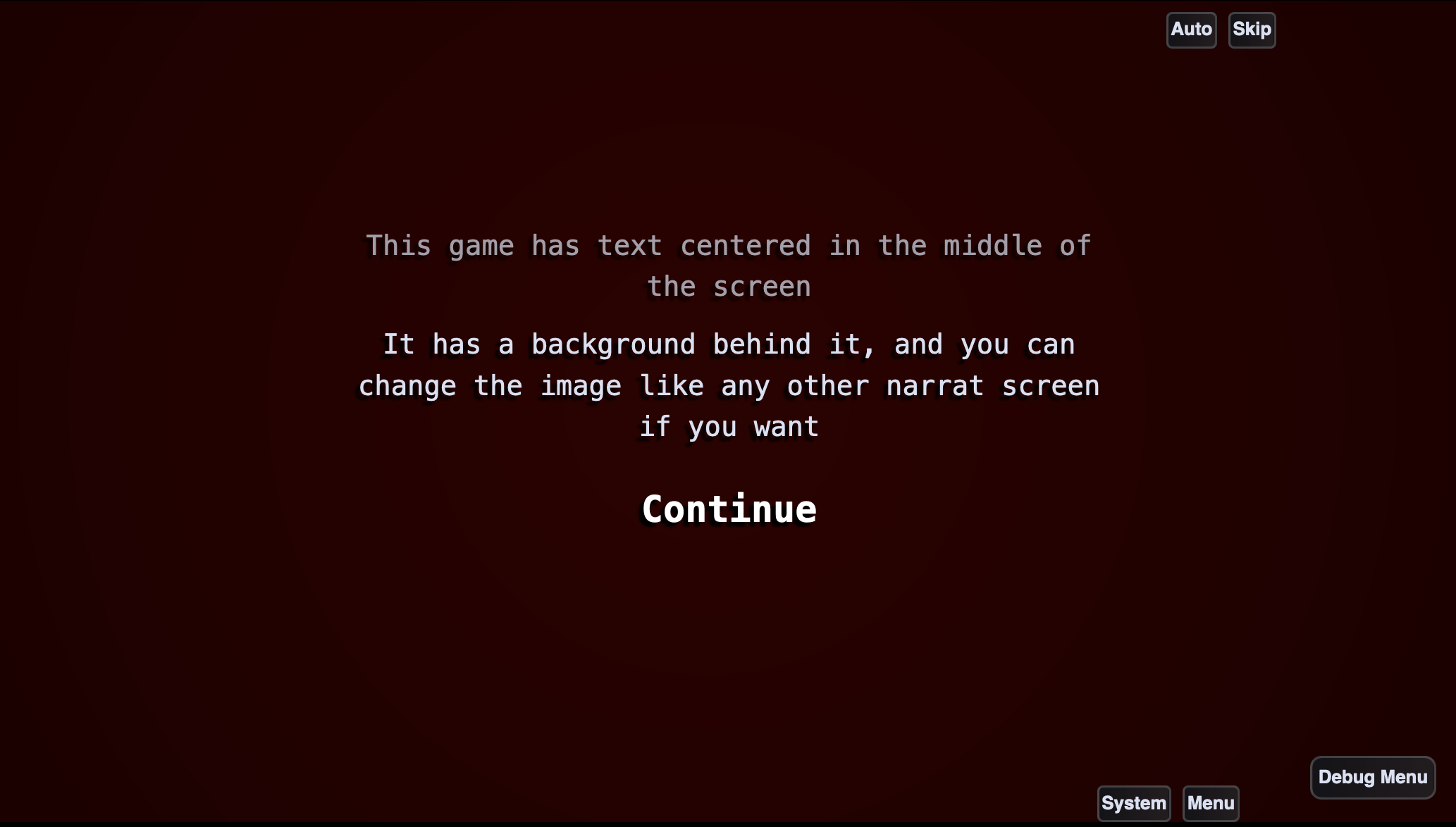
It is a theme which makes the dialog box background transparent and centers it on top of the screen.
This theme is exported as textOnlyTheme in narrat. Its id is narrat-text-only.
import { textOnlyTheme, NarratThemesPlugin, registerPlugin } from 'narrat';

export function setupMyThemes() {
  const themes = new NarratThemesPlugin({
    themes: [textOnlyTheme],
    defaultTheme: 'narrat-text-only',
  });
  registerPlugin(themes);
}Overriding built-in themes config
Some themes extend the config (for example to change the shape of the dialog panel). If you want to tweak them in your game, you can modify them. For example:
import { textOnlyTheme, NarratThemesPlugin, registerPlugin } from 'narrat';

export function setupMyThemes() {
  // Change the `dialogPanel` value of the extended config
  textOnlyTheme.extendedConfig.dialogPanel = {
    // Take the original values
    ...textOnlyTheme.extendedConfig.dialogPanel,
    // But override the width and height
    width: 500,
    height: 300,
  };
  // Or, for setting individual values you can just do:
  textOnlyTheme.extendedConfig.dialogPanel.width = 500;
  const themes = new NarratThemesPlugin({
    themes: [textOnlyTheme],
    defaultTheme: 'narrat-text-only',
  });
  registerPlugin(themes);
}How do I create a theme?
To create a theme, simply create a folder for you theme in the src folder. For this example, let's call it my-theme.
This folder will contain your css file and your theme file. Create the file my-theme/styles.css:
body {
  color: red;
  font-size: 50px;
}Then, create the theme file: my-theme/index.ts:
import { Theme } from 'narrat';
// We import our CSS file. Note that the `?inline` part in the path is important.
import MyThemeCSS from './styles.css?inline';

export const myTheme: Theme = {
  css: MyThemeCSS,
  // The id is how the theme will be referred to in your narrat scripts
  id: 'my-theme',
  default
  extendedConfig: {
    // In this example, we're using the extendedConfig option to change the size and position of the dialog panel. You can override any values in the config in this extendedConfig option.
    dialogPanel: {
      width: 900,
      height: 720,
      rightOffset: 150,
      bottomOffset: 0,
    },
  }
};Then, in your game you can import and add the theme, like done in the previous example:
import { registerPlugin, NarratThemesPlugin } from 'narrat';

export function setupMyThemes() {
  // You can setup your list of themes directly as you create the narrat plugin if you want
  const narratThemesPlugin = new NarratThemesPlugin({
    themes: [myTheme],
    // We can also give a default theme to the plugin
    defaultTheme: 'my-theme',
  });
  registerPlugin(narratThemesPlugin);
}